The complete Schematic for the
"Rev 3" uWatch PCB: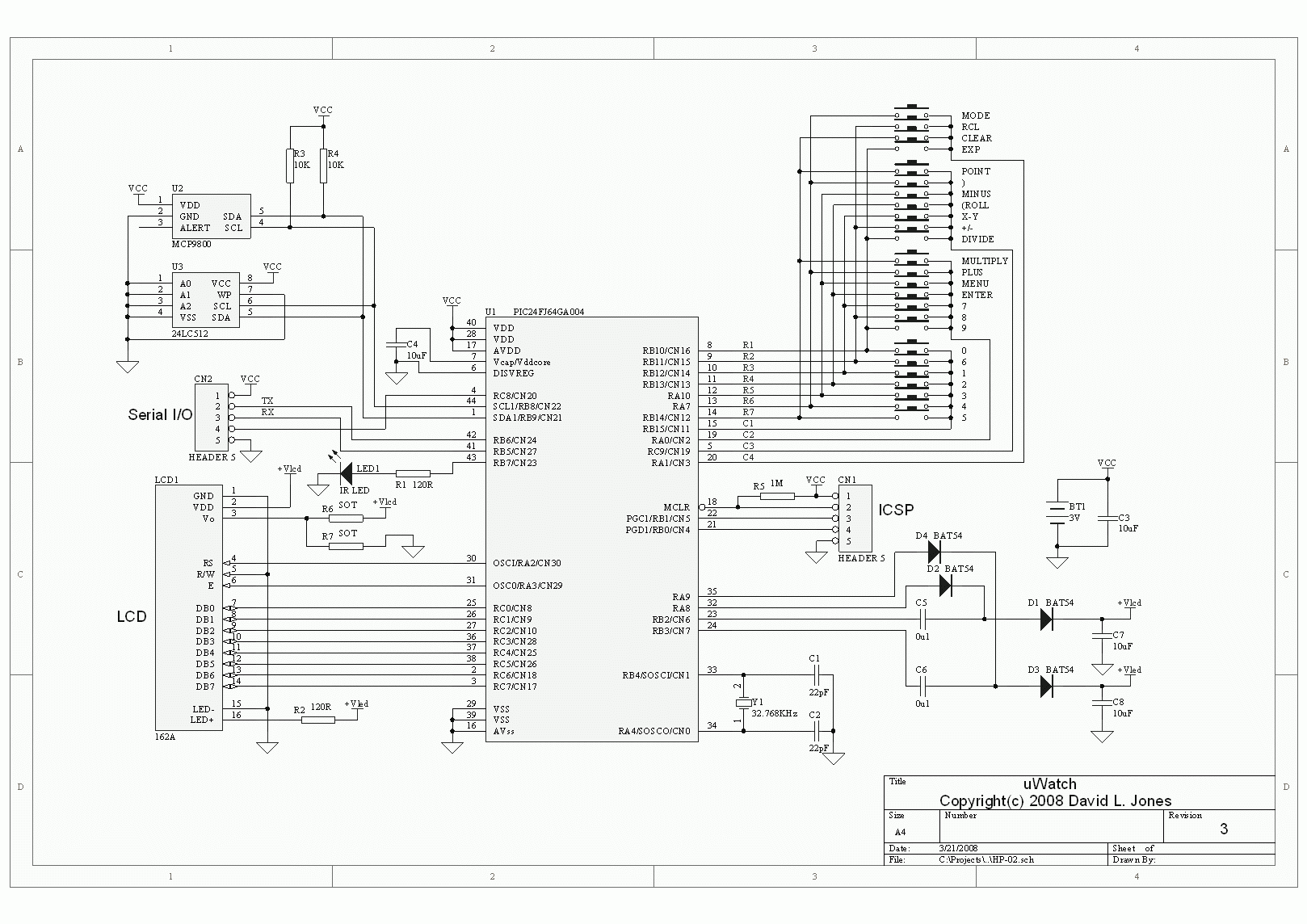
Note that the MCP9800 temperature sensor is not actually fitted. The IR led is
optional and not supplied with the kits. The current software does not support
this.
µWatch
World's First D-I-Y Scientific Calculator Watch!
|
Home | What is It? | History | Photos | Design & Construction | Updates & Downloads | User Manual | Get One! | User Forum | Wiki | About |
The complete Schematic for the
"Rev 3" uWatch PCB:
Note that the MCP9800 temperature sensor is not actually fitted. The IR led is
optional and not supplied with the kits. The current software does not support
this.
Check out my regular Electronics Engineering Video Blog!
This episode I talk about the design of the uWatch:
and part 2:
Construction
The uWatch comes as a kit of parts. All of the electronic SMD parts on the PCB are pre-assembled.
You need the following to assemble a uWatch:
Superglue, preferably the non-runny "gel" kind.
5 minute 2 part epoxy glue
Tweezers
Soldering iron and wire cutters
Electrical tape
Step 1 - Supergluing
Superglue the 4 pin holders in place on the board. Only use a small bad of superglue, enough to hold it in place before you epoxy them.
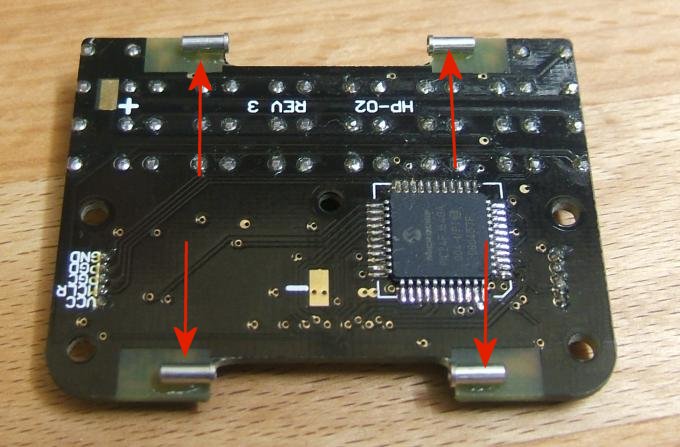
Make sure the raised ring of the each pin just
overhangs the edge of the board. The spacing between the two pins should be
22mm.
And make sure each pin is centered halfway between the outer edge of the board
and inner routed edge of the cutout.
Use needle point tweezers to hold them in place while gluing.
Once the pins are dry, do the same thing for the 2mm nut:
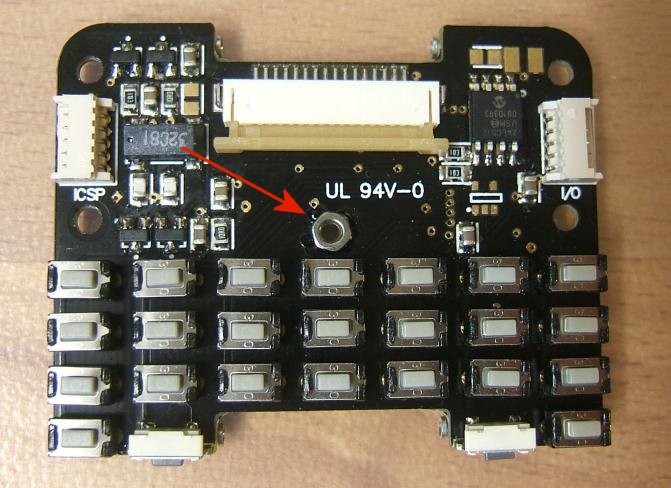
Tack the nut in place over the exact centre of the mounting hole on the top side of the board.
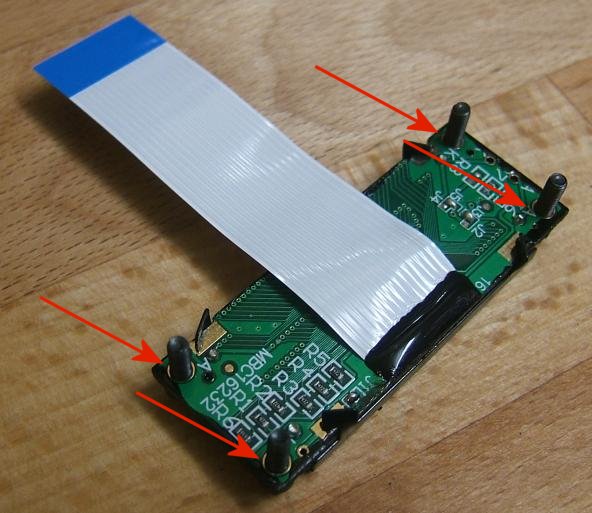
Superglue the 4 Socket Head screws in place on
the LCD, using a small bad of superglue around the top part of the thread.
Make sure that the screws are straight, otherwise they won't fit into the holes
on the PCB later.
Observe the usual precautions for superglue - this stuff sticks to your skin INSTANTLY!
Step 2 - Expoying
After the superglue has set, mix a small amount of two part epoxy and cover the 4 pins.
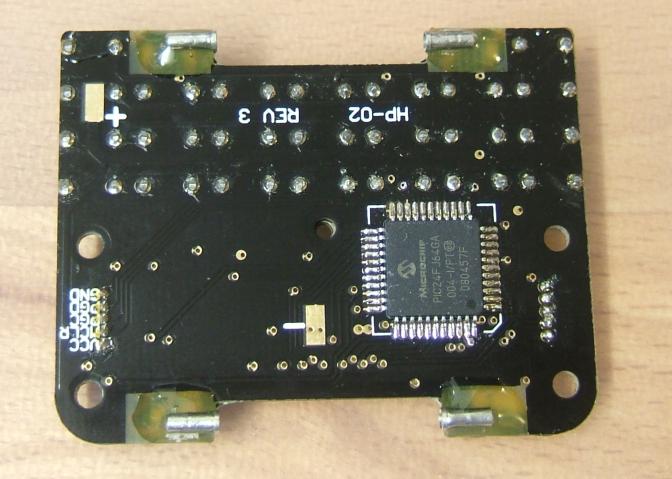
Don't go past the soldermask outline as shown in this photo, otherwise the back
case won't sit flush on the board.
Do the same for the 2mm nut. But wait until the glue is almost set before adding, otherwise it could run down the side of the switch when you flip it back over.
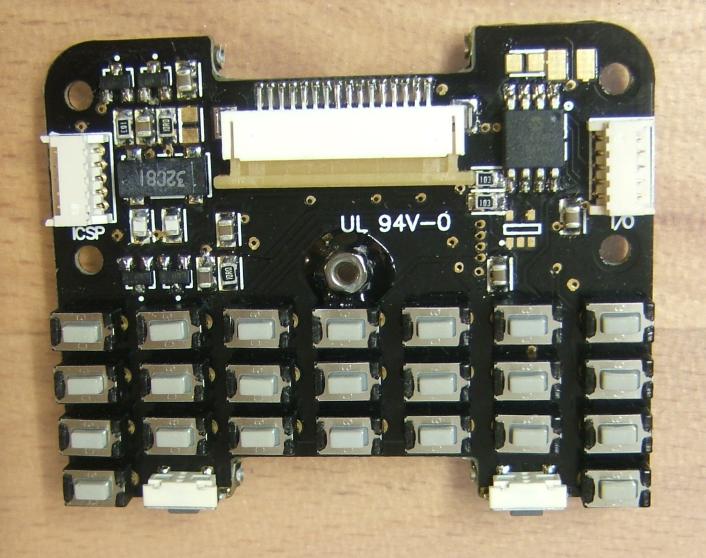
Step 3 - Attaching the LCD
The ribbon cable for the LCD must be bent over several times to fit under the LCD. You will need 5 folds, the exact details of which can vary. One example is shown here:
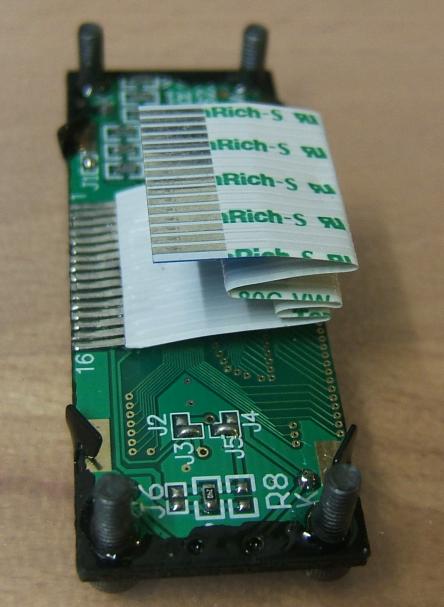
Ensure that the cable does not extend past the bottom edge of the board,
otherwise it will foul with the switches.
Also, ensure that the cable does not bend back over the LCD connector on the
main board, as the LCD connector is the highest component on the board.
The ribbon cable enters the connector with the metal contacts facing down.
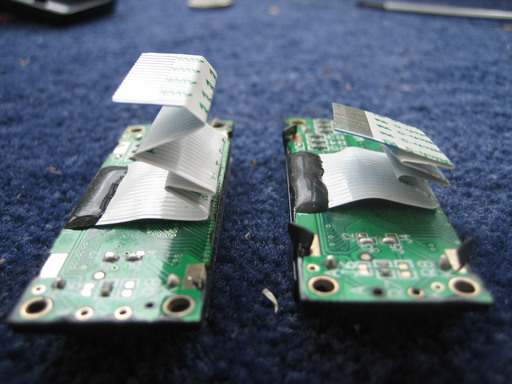
Hugh Steers has suggested the following folding arrangement on the right in the photo below:
Next, ensure that the black tabs on the bottom of the LCD on the bottom edge (nearest the keypad) are bent in slightly. If they protrude from the edge of the PCB then the keypad overlay will not line up correctly. Be very gentle bending these tabs, otherwise the LCD screen could be damaged.
Next connect the LCD ribbon to the connector on the board.
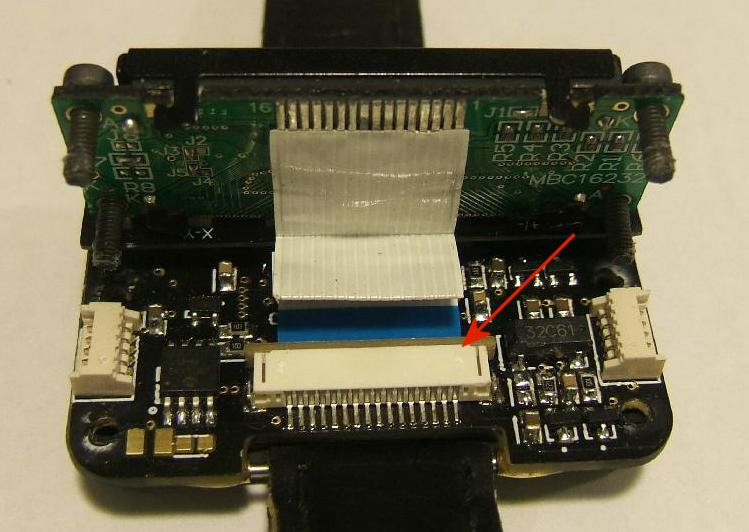
It is very important that you push the ribbon all
the way into the connector before closing the latching gate (it levers up and
down when extended).
Ensure the latching gate is pushed all the way back against the connector, this
locks the ribbon in place.
The latching gate is fairly delicate, be gentle with it.
Do NOT glue the LCD to the board at this stage, as you need to test it first.
Step 4 - Battery
Next solder the battery holders onto the PCB.
A small corner of the solder tab on each battery
holder may have to cut off to allow the holder to fit into the case.
You have the choice of installing either one or two battery holders, they are
wired in PARALLEL!. The only difference is that two batteries will give you
greater battery life.
It is recommended to mount the battery holder as shown, although they can also be mounted upside down if desired.
The polarity of each holder is marked on the top of the body, use the photo as a guide to wire it up. Sufficient wire length must be left to ensure that the case can be opened up for access. Excess wire is tucked into the spaces between the battery holders.
The positive and negative pads are marked on the bottom silkscreen.
Check that the bottom contact on each holder are lifted up to make contact with the battery. One user has reported problems with this.
As a final step, electrical tape should be placed on top of each battery to prevent shorting out to the underside of the PCB.
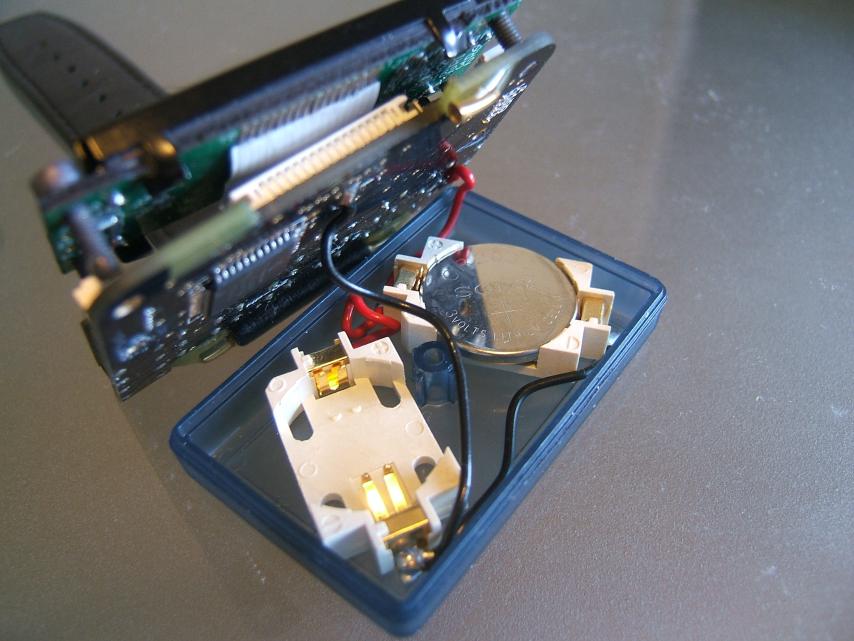
Now do a quick test to ensure the LCD is fully working by pressing the MODE button.
Step 5 - Keypad Overlay
The keypad overlay can now be glued into place.
First check to ensure that the keypad overlay fits over the keys and does not foul the metal tabs on the LCD. Bend the LCD tabs inwards slightly (and gently) if required.
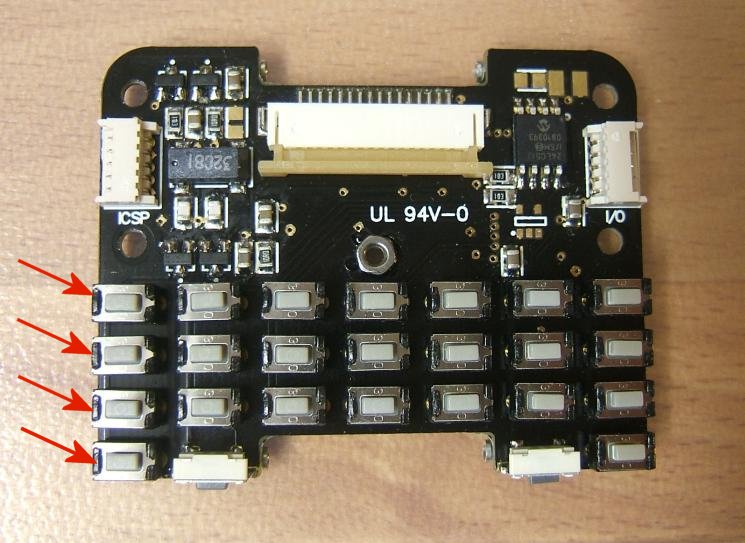
Place small tabs of gel type super glue to a selection of the small plastic bits on top of the switches. You do not have to apply to all switches, the ones in the corners and a few in the centre and/or around the edges are fine. Be very careful to ensure that none of the glue gets into the switch actuator, several people have reported dead switches after runny glue got into them.
Place the keypad overlay over the switches and ensure that the switches are centered within the hole cutouts. Hold this in place until the glue sets. If you do not keep pressure on the overlay then it may lift off before the glue sets.
Hugh Steers has suggested using epoxy to hold the front face plate on, like this:
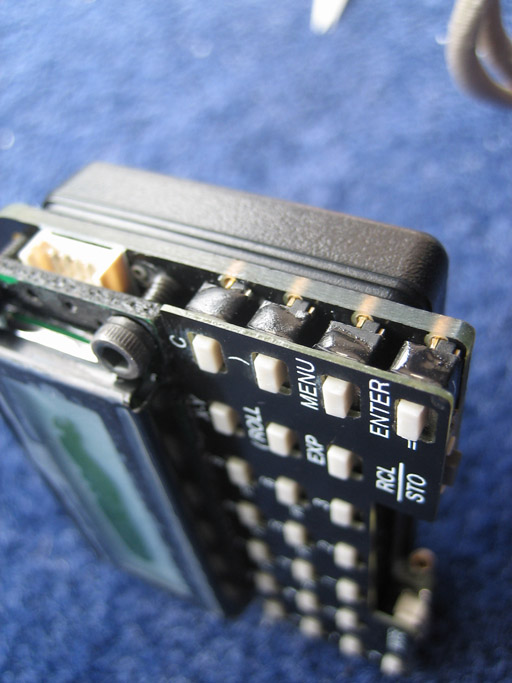
Step 6 - Glue the LCD in place.
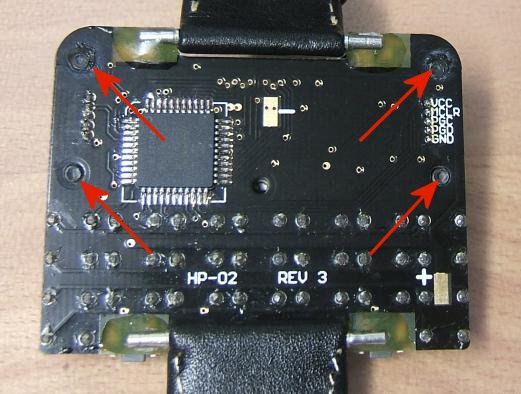
After you've tested the LCD is working you can glue it in place with superglue. The bottom of the
socket head screws should ideally be flush with the underside of the PCB as
shown in the photo, but do NOT force the LCD down to this level if it does not
go. As long as the screws penetrate the holes in the main board enough for you
to glue them, that is fine.
A small bad of glue is applied to the bottom thread of each screw and then the
LCD is pushed into place and held until set.
This is a fairly tricky operation, as the LCD may tilt during the gluing. The
key is to keep the LCD straight and level until the glue sets.
Do NOT force the LCD screen in any way, it is easily damaged!
Craig Magaret has sent in this picture on how he held his LCD in place during
assembly, using standard document fold-over clips. An excellent suggestion:
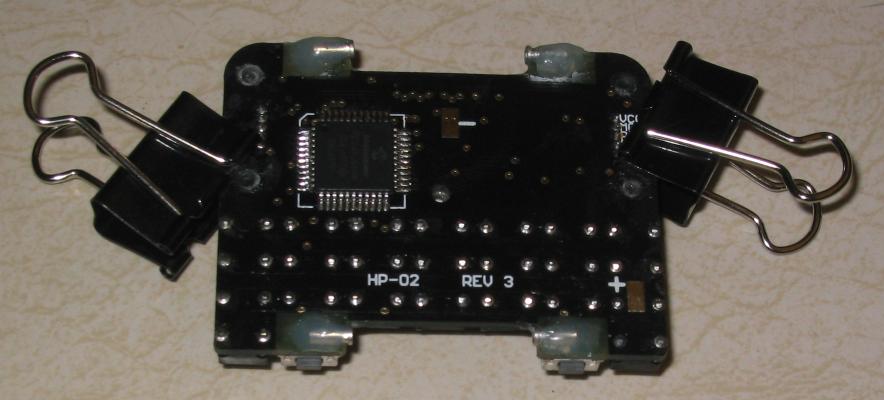
Craig says this trick also works for the keypad overlay below.
Step 7 - Testing
After you install the batteries the watch will be ready for use.
Pressing the MODE button will turn the watch on. At first the time and date will not be set, so the display may contain some incorrect characters, this is normal. Pressing the MODE button twice will get you to the setup menu from which you can set the time and date and other settings.
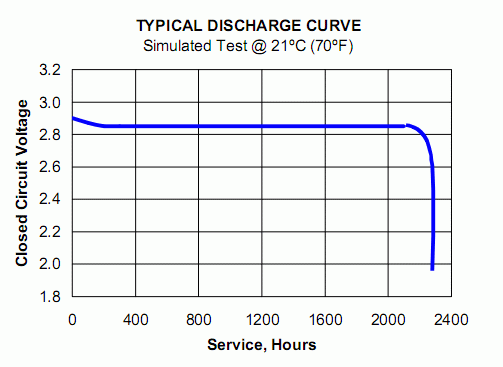
With brand new batteries installed it is normal for the LCD contrast to be very dark, with the display not being very easy to read. This is due to the design of the LCD driver circuitry and is normal, as the LCD contrast varies with the battery voltage. However, lithium batteries are designed to have a higher than normal terminal voltage when they are fresh, which then very quickly drops and stabilises. As shown in this typical discharge curve.
If the initial LCD contrast is too dark to be usable, then you can discharge the battery a small amount by briefly shorting out the battery. This can be done easily on the I/O connector (the one on the right hand side) by shorting pins 1 and 5 with a paperclip or other metal object.
Using the uWatch
The uWatch is normally in sleep mode and powers down the LCD to save battery power. (approx 3mA LCD on, and 15uA LCD off)
To switch the uWatch on press either the MODE key or the RCL/STO key.
The uWatch has three "modes":
1) Time/Date display
2) Calculator Mode
3) Setup mode
You can cycle through the modes at any time by pressing the mode key.
In Time/Date display mode you can turn on the backlight by pressing the RCL/STO key which turns on the backlight for about 5 seconds. If you press the same key a second time while the backlight is on then it will stay on permanately. Press the key again once to turn the backlight off again after 5 seconds.
The calculator mode defaults to RPN mode.
In the calculator mode you can access the function menus by pressing the MENU key. Pressing the menu key again will cycle through the various menu options. The C key will exit the menu mode. Functions displayed on the LCD can be selected with the F1 to F6 function keys below the screen, the correspond in physical location to the options on the screen.
In setup mode use the + and - keys to toggle through the various options. ENTER will select the options. The C key will usually let you abort the current operation.
Site
last updated : Jan 20th, 2009
Questions?/Comments?
EMAIL: david @ alternatezone.com
Copyright(c) 2009 David L. Jones